
 Posted By
Bajarangi soft ,
Posted On 08-10-2020
Posted By
Bajarangi soft ,
Posted On 08-10-2020
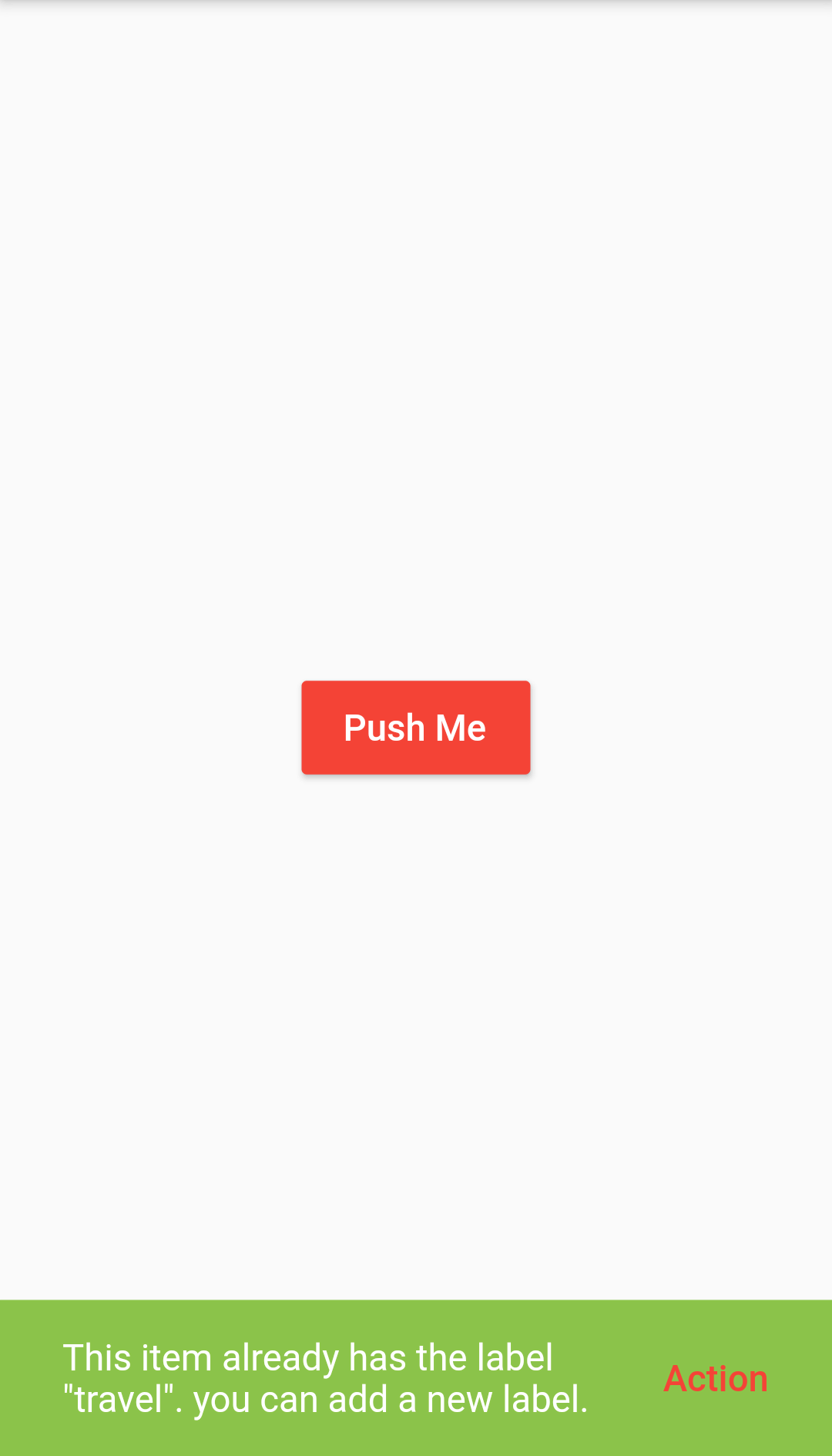
Change Snackbar Background Color
Step 1: Change Snackbar Background Color Short Code Example
showSnackBar(BuildContext context){

  final snackBar = SnackBar(
    backgroundColor: Colors.lightGreen,
    content: Text('This item already has the label "travel". you can add a new label.',),
    action: SnackBarAction(
      label: 'Action',
      textColor: Colors.red,
      onPressed: () {
      },
    ),
  );
  Scaffold.of(context).showSnackBar(snackBar);
}
import 'package:flutter/material.dart';

void main() => runApp(MyApp());

class MyApp extends StatelessWidget {
  @override
  Widget build(BuildContext context) {
    return MaterialApp(
      debugShowCheckedModeBanner: false,
      home: Scaffold(
        appBar: AppBar(
          leading: Icon(Icons.menu),
          centerTitle: true,
          backgroundColor: Colors.red,
          title: Text('SnackBar'),
          actions: [
            Padding(
              padding: const EdgeInsets.only(right:8.0),
              child: Icon(Icons.notifications_none),
            )
          ],
        ),
        body: SnackBarWidget(),
      ),
    );
  }
}

class SnackBarWidget extends StatelessWidget {

  showSnackBar(BuildContext context){

    final snackBar = SnackBar(
      backgroundColor: Colors.lightGreen,
      content: Text('This item already has the label "travel". you can add a new label.',),
      action: SnackBarAction(
        label: 'Action',
        textColor: Colors.red,
        onPressed: () {
        },
      ),
    );
    Scaffold.of(context).showSnackBar(snackBar);
  }
  @override
  Widget build(BuildContext context) {
    return Center(
      child: Container(
        padding: EdgeInsets.fromLTRB(20, 20, 20, 20),
        child: RaisedButton(
          color: Colors.red,
          onPressed: () {showSnackBar(context);},
          child: Text('Push Me',style: TextStyle(color: Colors.white),),
        ),
      ),
    );
  }
}