
 Posted By
Bajarangi soft ,
Posted On 30-10-2020
Posted By
Bajarangi soft ,
Posted On 30-10-2020
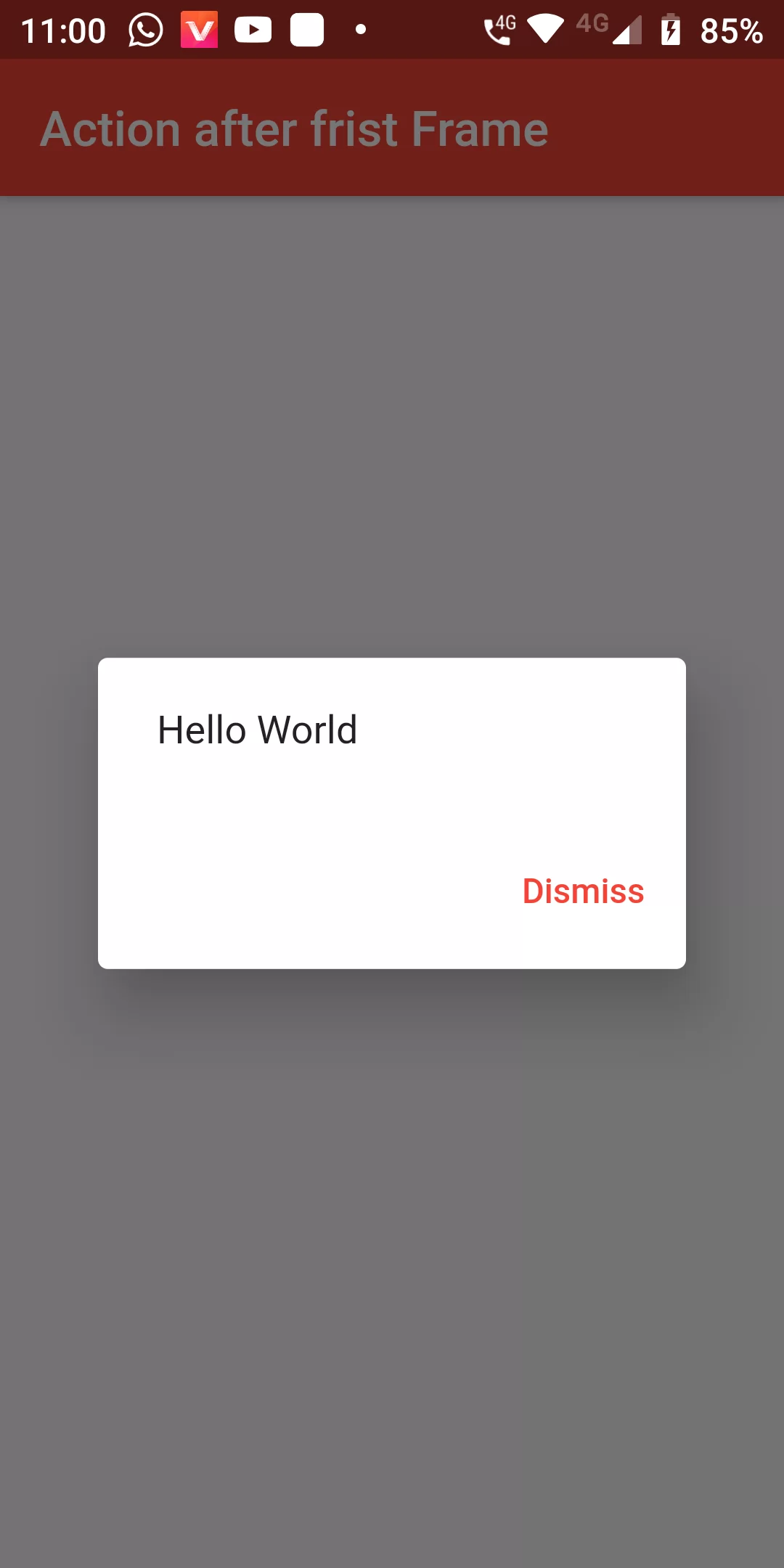
After Layout
Step 1: We cannot directly remove the time stamp from After Layout but using the intl.dart package we can easily filter the date stamp from time stamp. So open your flutter project’s pubspec.yaml in code
dependencies:
  flutter:
    sdk: flutter
  after_layout: ^1.0.7+2
Step 2: After done saving the pubspec.yaml file, Open your flutter project root folder in Command Prompt or Terminal and execute flutter pub get command.
flutter pub get
import 'package:after_layout/after_layout.dart';
import 'package:flutter/material.dart';
import 'package:after_layout/after_layout.dart';

void main() => runApp(new MyApp());

class MyApp extends StatelessWidget {
  @override
  Widget build(BuildContext context) {
    return new MaterialApp(
      debugShowCheckedModeBanner: false,
      title: 'After Layout',
      home: new AfterFirstFrame(),
    );
  }
}

class AfterFirstFrame extends StatefulWidget {
  @override
  _ActionAfterFirstFrameState createState() => _ActionAfterFirstFrameState();
}

class _ActionAfterFirstFrameState extends State<AfterFirstFrame>
    with AfterLayoutMixin<AfterFirstFrame> {
  @override
  Widget build(BuildContext context) {
    return Scaffold(
      appBar: AppBar(
        backgroundColor: Colors.red,
          title: Text('Action After Frist Frame'
          )),
      body: Center(child: Text('Inducesmile.com')),
    );
  }

  @override
  void afterFirstLayout(BuildContext context) {
    _showMyDialog();
  }

  void _showMyDialog() {
    showDialog(
        context: context,
        builder: (context) => new AlertDialog(
          content: Text('Hello World'),
          actions: <Widget>[
            new FlatButton(
              child: Text('Dismiss',style: TextStyle(color: Colors.red),),
              onPressed: () => Navigator.of(context).pop(),
            )
          ],
        ));
  }
}