
 Posted By
Bajarangi soft ,
Posted On 06-10-2020
Posted By
Bajarangi soft ,
Posted On 06-10-2020
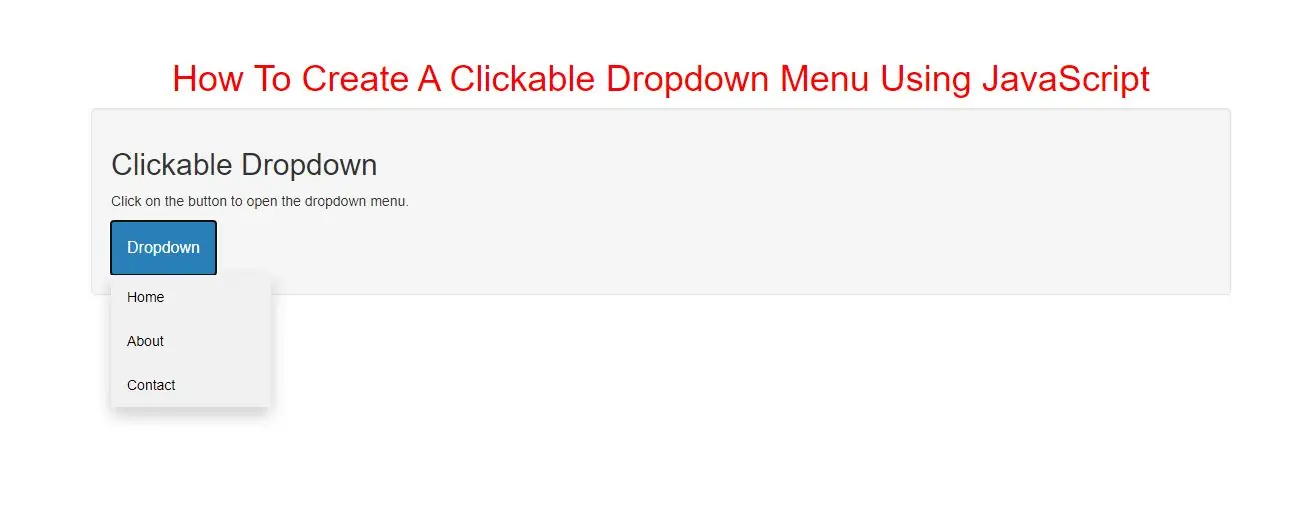
A dropdown menu is a toggleable menu that allows the user to choose one value from a predefined list
Create a Clickable Dropdown
Step 1: Create index.html and implement below code
<div class="dropdown">
    <button onclick="list_item()" class="dropbtn">Dropdown</button>
    <div id="myDropdown" class="dropdown-content">
        <a href="#home">Home</a>
        <a href="#about">About</a>
        <a href="#contact">Contact</a>
    </div>
</div>
<style>
    .dropbtn {
        background-color: #3498DB;
        color: white;
        padding: 16px;
        font-size: 16px;
        border: none;
        cursor: pointer;
    }

    .dropbtn:hover, .dropbtn:focus {
        background-color: #2980B9;
    }

    .dropdown {
        position: relative;
        display: inline-block;
    }

    .dropdown-content {
        display: none;
        position: absolute;
        background-color: #f1f1f1;
        min-width: 160px;
        overflow: auto;
        box-shadow: 0px 8px 16px 0px rgba(0,0,0,0.2);
        z-index: 1;
    }

    .dropdown-content a {
        color: black;
        padding: 12px 16px;
        text-decoration: none;
        display: block;
    }

    .dropdown a:hover {background-color: #ddd;}

    .show {display: block;}
</style>
Step 3: Now Implement java script to see dropdown items.
<script>
    /* When the user clicks on the button,
    toggle between hiding and showing the dropdown content */
    function list_item() {
        document.getElementById("myDropdown").classList.toggle("show");
    }

    // Close the dropdown if the user clicks outside of it
    window.onclick = function(event) {
        if (!event.target.matches('.dropbtn')) {
            var dropdowns = document.getElementsByClassName("dropdown-content");
            var i;
            for (i = 0; i < dropdowns.length; i++) {
                var openDropdown = dropdowns[i];
                if (openDropdown.classList.contains('show')) {
                    openDropdown.classList.remove('show');
                }
            }
        }
    }
</script>
Complete Code For CreatingA Clickable Dropdown Menu Using JavaScript
<!DOCTYPE html>
<html>
<head>
    <title>How To Create A Clickable Dropdown Menu Using JavaScript</title>
    <meta charset="utf-8">
    <meta name="viewport" content="width=device-width, initial-scale=1">
    <link rel="stylesheet" href="https://maxcdn.bootstrapcdn.com/bootstrap/3.4.1/css/bootstrap.min.css">
</head>
<style>
    h1 {
        color: red;
    }
    .dropbtn {
        background-color: #3498DB;
        color: white;
        padding: 16px;
        font-size: 16px;
        border: none;
        cursor: pointer;
    }

    .dropbtn:hover, .dropbtn:focus {
        background-color: #2980B9;
    }

    .dropdown {
        position: relative;
        display: inline-block;
    }

    .dropdown-content {
        display: none;
        position: absolute;
        background-color: #f1f1f1;
        min-width: 160px;
        overflow: auto;
        box-shadow: 0px 8px 16px 0px rgba(0, 0, 0, 0.2);
        z-index: 1;
    }

    .dropdown-content a {
        color: black;
        padding: 12px 16px;
        text-decoration: none;
        display: block;
    }

    .dropdown a:hover {
        background-color: #ddd;
    }

    .show {
        display: block;
    }
</style>
<body>
<div class="container">
    <br>
    <br>
    <br>
    <div class="text-center">
        <h1>How To Create A Clickable Dropdown Menu Using JavaScript</h1>
    </div>
    <div class="well">
        <h2>Clickable Dropdown</h2>
        <p>Click on the button to open the dropdown menu.</p>

        <div class="dropdown">
            <button onclick="list_item()" class="dropbtn">Dropdown</button>
            <div id="myDropdown" class="dropdown-content">
                <a href="#home">Home</a>
                <a href="#about">About</a>
                <a href="#contact">Contact</a>
            </div>
        </div>
    </div>
    <div>
</body>
</html>
<script>
    /* When the user clicks on the button,
    toggle between hiding and showing the dropdown content */
    function list_item() {
        document.getElementById("myDropdown").classList.toggle("show");
    }

    // Close the dropdown if the user clicks outside of it
    window.onclick = function (event) {
        if (!event.target.matches('.dropbtn')) {
            var dropdowns = document.getElementsByClassName("dropdown-content");
            var i;
            for (i = 0; i < dropdowns.length; i++) {
                var openDropdown = dropdowns[i];
                if (openDropdown.classList.contains('show')) {
                    openDropdown.classList.remove('show');
                }
            }
        }
    }
</script>