
 Posted By
Bajarangi soft ,
Posted On 06-10-2020
Posted By
Bajarangi soft ,
Posted On 06-10-2020
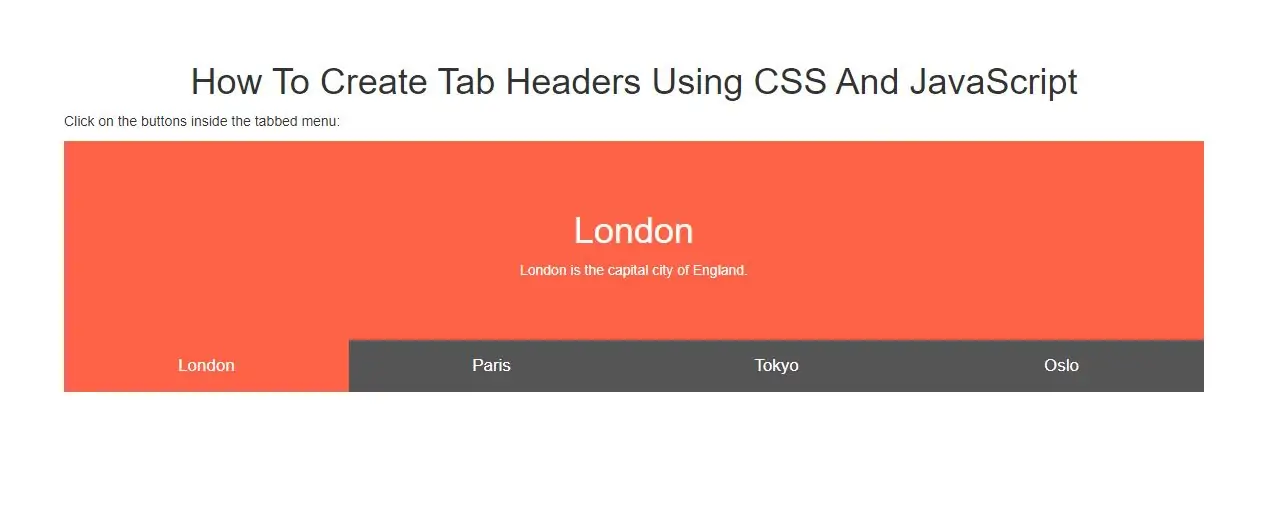
Create Togglable Tab Headers
Step 1: Create index.html and implement below code.
<div id="London" class="tabcontent">
    <h1>London</h1>
    <p>London is the capital city of England.</p>
</div>

<div id="Paris" class="tabcontent">
    <h1>Paris</h1>
    <p>Paris is the capital of France.</p>
</div>

<div id="Tokyo" class="tabcontent">
    <h1>Tokyo</h1>
    <p>Tokyo is the capital of Japan.</p>
</div>

<div id="Oslo" class="tabcontent">
    <h1>Oslo</h1>
    <p>Oslo is the capital of Norway.</p>
</div>
<style>
    body {font-family: "Lato", sans-serif;}

    .tablink {
        background-color: #555;
        color: white;
        float: left;
        border: none;
        outline: none;
        cursor: pointer;
        padding: 14px 16px;
        font-size: 17px;
        width: 25%;
    }

    .tablink:hover {
        background-color: #777;
    }

    /* Style the tab content */
    .tabcontent {
        color: white;
        display: none;
        padding: 50px;
        text-align: center;
    }

    #London {background-color:tomato;}
    #Paris {background-color:green;}
    #Tokyo {background-color:blue;}
    #Oslo {background-color:orange;}
</style>
Step 3: Now Implement java script to open tabs content.
<script>
    function openCity(cityName,elmnt,color) {
        var i, tabcontent, tablinks;
        tabcontent = document.getElementsByClassName("tabcontent");
        for (i = 0; i < tabcontent.length; i++) {
            tabcontent[i].style.display = "none";
        }
        tablinks = document.getElementsByClassName("tablink");
        for (i = 0; i < tablinks.length; i++) {
            tablinks[i].style.backgroundColor = "";
        }
        document.getElementById(cityName).style.display = "block";
        elmnt.style.backgroundColor = color;

    }
    // Get the element with id="defaultOpen" and click on it
    document.getElementById("defaultOpen").click();
</script>
Complete Code For Creating Toggleable Tab Headers Using CSS And JavaScript
<!DOCTYPE html>
<html>
<head>
    <title>How To Create Tab Headers Using CSS And JavaScript</title>
    <meta charset="utf-8">
    <meta name="viewport" content="width=device-width, initial-scale=1">
    <link rel="stylesheet" href="https://maxcdn.bootstrapcdn.com/bootstrap/3.4.1/css/bootstrap.min.css">
</head>
<style>
    body {
        font-family: "Lato", sans-serif;
    }

    .tablink {
        background-color: #555;
        color: white;
        float: left;
        border: none;
        outline: none;
        cursor: pointer;
        padding: 14px 16px;
        font-size: 17px;
        width: 25%;
    }

    .tablink:hover {
        background-color: #777;
    }

    /* Style the tab content */
    .tabcontent {
        color: white;
        display: none;
        padding: 50px;
        text-align: center;
    }

    #London {
        background-color: tomato;
    }

    #Paris {
        background-color: green;
    }

    #Tokyo {
        background-color: blue;
    }

    #Oslo {
        background-color: orange;
    }
</style>
<body>
<div class="container">
    <br>
    <br>
    <br>
    <div class="text-center">
        <h1>How To Create Tab Headers Using CSS And JavaScript</h1>
    </div>
    <p>Click on the buttons inside the tabbed menu:</p>

    <div id="London" class="tabcontent">
        <h1>London</h1>
        <p>London is the capital city of England.</p>
    </div>

    <div id="Paris" class="tabcontent">
        <h1>Paris</h1>
        <p>Paris is the capital of France.</p>
    </div>

    <div id="Tokyo" class="tabcontent">
        <h1>Tokyo</h1>
        <p>Tokyo is the capital of Japan.</p>
    </div>

    <div id="Oslo" class="tabcontent">
        <h1>Oslo</h1>
        <p>Oslo is the capital of Norway.</p>
    </div>

    <button class="tablink" onclick="openCity('London', this, 'tomato')" id="defaultOpen">London</button>
    <button class="tablink" onclick="openCity('Paris', this, 'green')">Paris</button>
    <button class="tablink" onclick="openCity('Tokyo', this, 'blue')">Tokyo</button>
    <button class="tablink" onclick="openCity('Oslo', this, 'orange')">Oslo</button>

    <script>
        function openCity(cityName, elmnt, color) {
            var i, tabcontent, tablinks;
            tabcontent = document.getElementsByClassName("tabcontent");
            for (i = 0; i < tabcontent.length; i++) {
                tabcontent[i].style.display = "none";
            }
            tablinks = document.getElementsByClassName("tablink");
            for (i = 0; i < tablinks.length; i++) {
                tablinks[i].style.backgroundColor = "";
            }
            document.getElementById(cityName).style.display = "block";
            elmnt.style.backgroundColor = color;

        }

        // Get the element with id="defaultOpen" and click on it
        document.getElementById("defaultOpen").click();
    </script>

    <div>
</body>
</html>