
 Posted By
Bajarangi soft ,
Posted On 06-11-2020
Posted By
Bajarangi soft ,
Posted On 06-11-2020
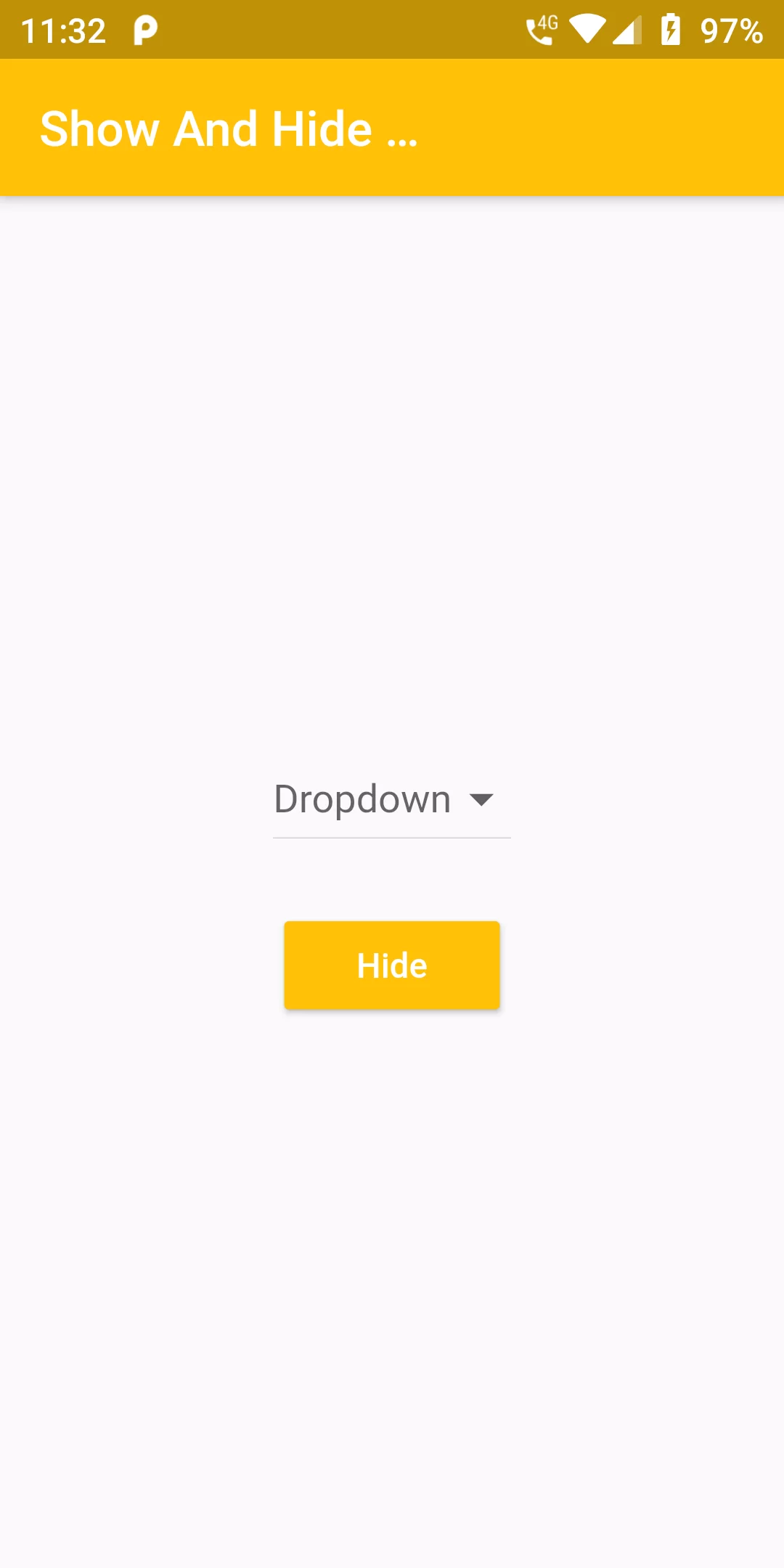
Show And Hide Dropdown Button
COmplete Code For Show And Hide DropdownButton In Flutter
main.dart
import 'package:flutter/material.dart';

void main() {
  runApp(MyApp());
}

class MyApp extends StatelessWidget {
  @override
  Widget build(BuildContext context) {
    return MaterialApp(
      debugShowCheckedModeBanner: false,
      title: 'Flutter Demo',
      home: MyHomePage(),
    );
  }
}

class MyHomePage extends StatefulWidget {
  @override
  _MyHomePageState createState() => _MyHomePageState();
}

class _MyHomePageState extends State<MyHomePage> {
  final List<String> _dropdownValues = [
    "HTML",
    "LARAVEL",
    "FLUTTER",
    "ANDROID",
    "DART"
  ];

  String _selectedValue = "";
  bool _isDropdownVisible = true;

  @override
  Widget build(BuildContext context) {
    return Scaffold(
      appBar: AppBar(
        backgroundColor: Colors.amber,
        title: Text('Show And Hide DropdownButton'),
      ),
      body: Center(
        child: Column(
          mainAxisAlignment: MainAxisAlignment.center,
          mainAxisSize: MainAxisSize.max,
          children: <Widget>[
            _isDropdownVisible
                ? DropdownButton<String>(
              items: _dropdownValues
                  .map((data) => DropdownMenuItem<String>(
                child: Text(data),
                value: data,
              ))
                  .toList(),
              onChanged: (String value) {
                setState(() => _selectedValue = value);
              },
              hint: Text('Dropdown'),
            )
                : SizedBox(),
            SizedBox(height: 20.0),
            RaisedButton(
              color: Colors.amber,
              textColor: Colors.white,
              child: Text(_isDropdownVisible ? "Hide" : "Show"),
              onPressed: () {
                setState(() => _isDropdownVisible = !_isDropdownVisible);
              },
            ),
          ],
        ),
      ),
    );
  }
}